 S3 Files
Adding an S3 Server
Each server in S3 Files is one set of keys for one storage service, usually pointed at one bucket. Tap New Server in the server list, or press ⌘N, then pick the service, paste the keys and choose where to connect. The server also appears in the Files app or Finder, and syncs to your other devices through iCloud Keychain.
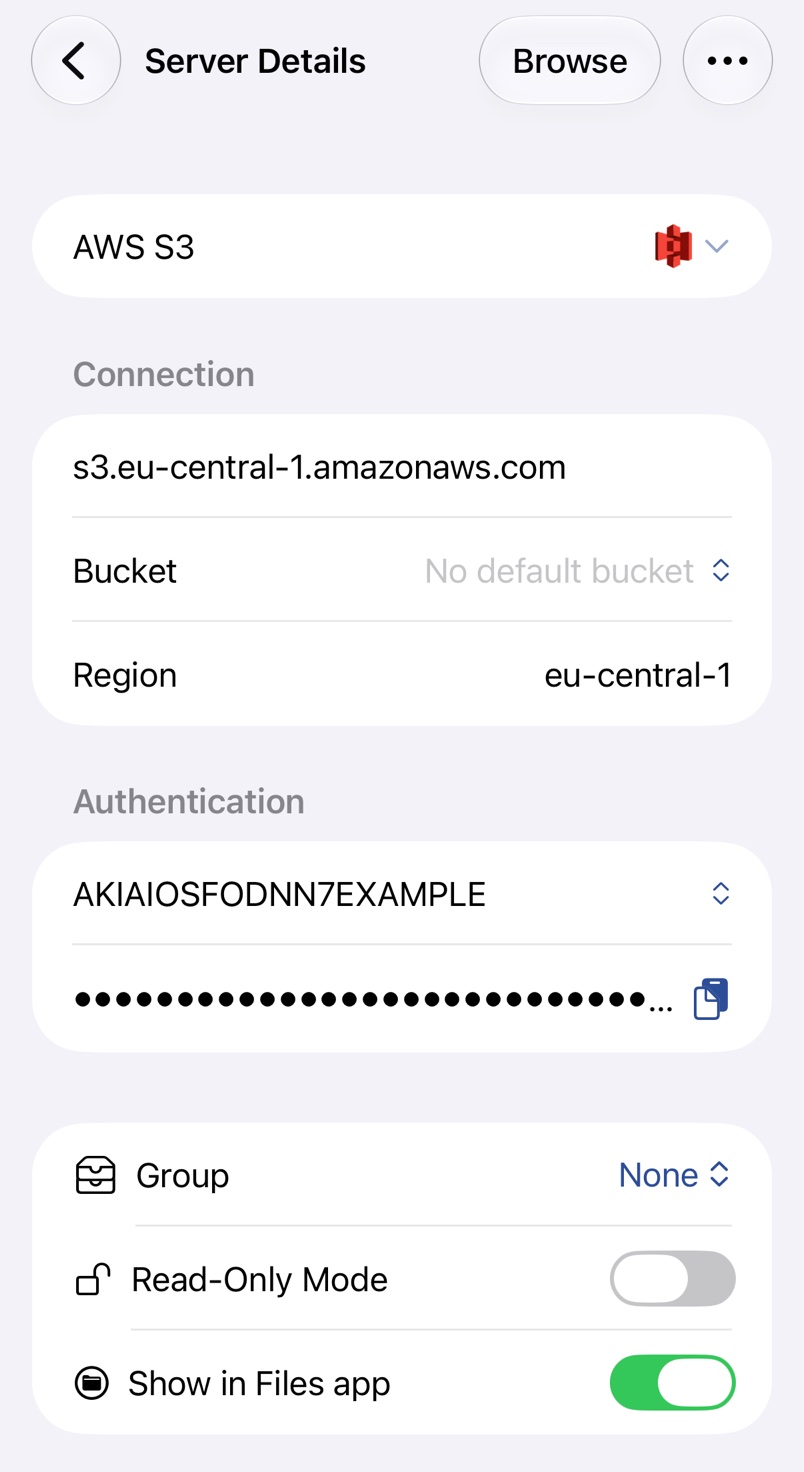
1. Pick the service
Service lists the providers S3 Files knows, and Other for any S3-compatible service without a name of its own. Each has a page with the details: AWS S3, Cloudflare R2, Backblaze B2, Google Cloud Storage, MinIO and Garage, and Other S3 Services.
2. Enter the keys
Paste the access key and the secret. The chevron next to the access key lists Existing Authentication, the keys of your other servers for the same provider.
3. Choose bucket and region
Where the provider allows it, the chevron beside Bucket lists the buckets the keys can see, and picking one fills in its region. Leave the bucket empty to browse every bucket in the account. That needs Pro, unless you've used S3 Files since before it became part of Pro.
4. Create and test
Tap Create and S3 Files tests the connection. Test Server in the server details runs it again, and Connection Errors explains what can go wrong.
Server details
- Read-Only Mode refuses uploads, renames, deletes and other changes, also from the Files app and Finder.
- Show in Files app (Show in Finder on a Mac) decides whether the server appears there.
- Directory starts the server inside a folder of the bucket, such as
photos/2026.
The pages Encryption and Storage Classes and Glacier cover the Encryption and Storage Class settings.
Opening s3:// links
Tapping an s3:// link in another app opens the file in S3 Files, using your AWS server for that bucket or a new one with the keys of your other AWS servers. If none of them reach the bucket, S3 Files asks for keys.