 S3 Files
Shortcuts Automation
S3 Files adds actions for your servers to the Shortcuts app, so a shortcut can upload the photos it was given, or handle each file in a folder. Shortcuts support is a Pro feature.
Actions
- List on S3 returns the files in a Directory, with Recursive for subfolders and Share Link for links.
- Download from S3 fetches a file for the next actions.
- Upload to S3 sends a File to a Path; Already Exists decides what happens to a file that's there. It can also set the Storage Class and return a Share Link.
- Move Files and Delete Files ask first while Prompt to confirm is on, and skip non-empty folders unless told otherwise.
- Sync S3 Folder runs a synced folder now; see Folder Sync.
- Request S3 Upload makes a link for uploading one file.
On iOS 26 and macOS 26, every action except listing needs the device to be unlocked.
Example shortcuts
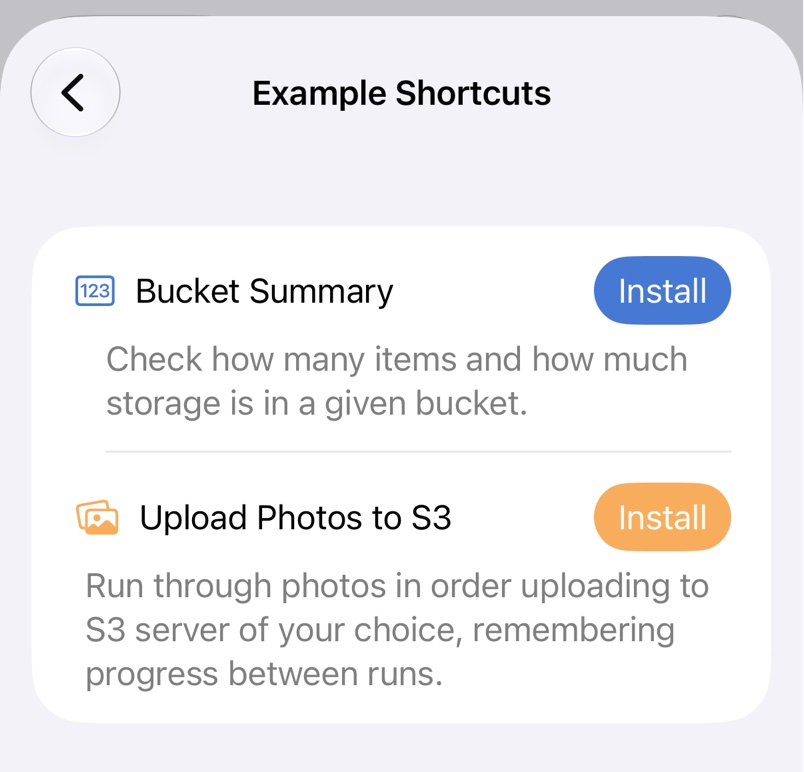
Settings in S3 Files, or the Help menu on a Mac, has examples such as Bucket Summary and Upload Photos to S3.
Troubleshooting
- S3 Files Pro must be unlocked in main app to use shortcuts. Unlock Pro or start a trial; see Free and Pro.