 S3 Files
File Permissions and Version History
Every file has a Manage sheet showing who may read it, how it's encrypted, its storage class and, in a bucket with versioning, its earlier versions. Choose Manage after long-pressing a file in the Files app on iPhone and iPad, or right-clicking it in Finder on a Mac; in the S3 Files browser, just open the file.
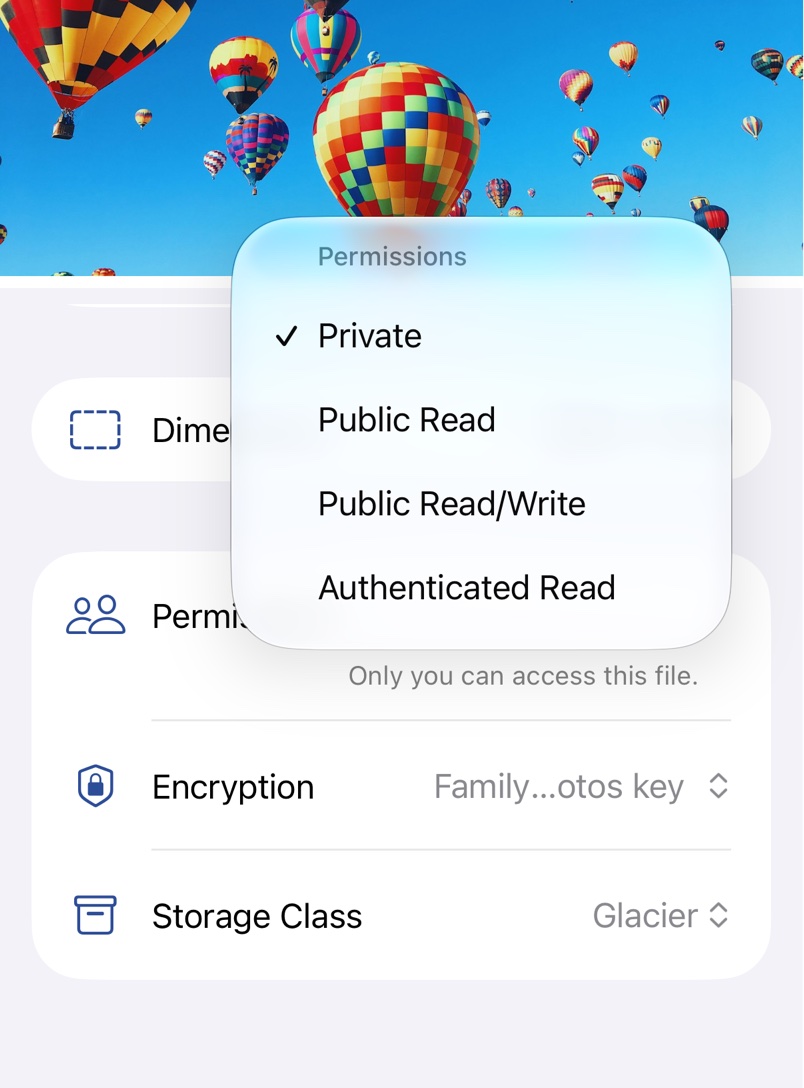
Permissions
The Permissions menu sets the file's access control list, with a line below it explaining each choice: Private, Public Read, Public Read/Write, Authenticated Read, and for files you put in someone else's bucket, Bucket Owner Read and Bucket Owner Full Control. A Public Read file's link from Share Links is its permanent address.
When the bucket blocks public access, the menu is headed Restricted by bucket and leaves out the public choices. AWS buckets created since 2023 turn access control lists off entirely, so use a bucket policy for those. Services without access control lists show the menu greyed out.
Version history
In a bucket with versioning turned on, Version lists every version of the file. Pick an older one and choose Restore to make it current again, Download or Share, in the menu on a Mac. Older versions are free where downloads are free, otherwise part of Pro.
Deleted files
Deleting a file in a versioned bucket only hides it. To get it back, turn on Include Deleted Files in the view options of the S3 Files browser, open the file, pick the last version before the deletion and tap Restore.
Versioning is turned on at your provider, for AWS in the bucket's Properties tab, and every version counts towards your storage.