 S3 Files
Connect to Amazon S3
S3 Files signs in to Amazon S3 with an IAM user's access key, which suits most people, or through IAM Identity Center when your organisation uses an AWS access portal.
Create the access key for an IAM user that can only reach what S3 Files needs, never for the root user of your account.
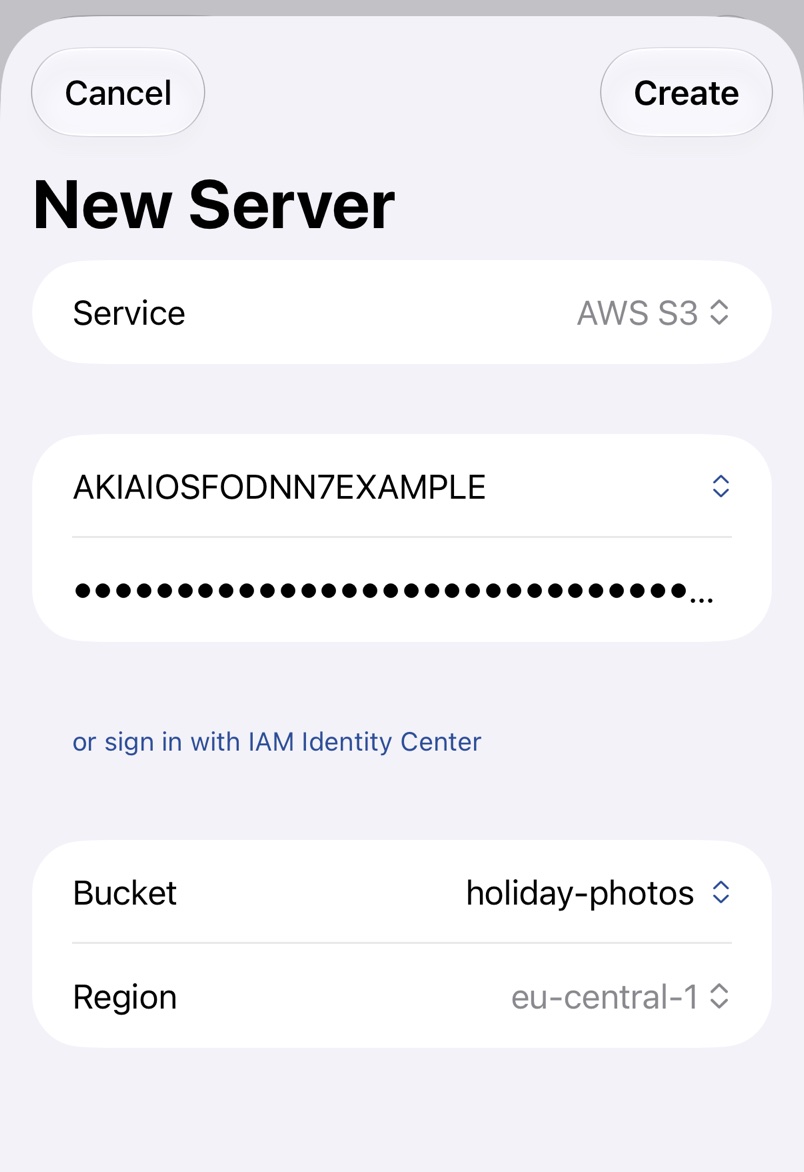
Sign in with an access key
1. A policy for one bucket
This policy lets the key list, read, write and delete in example-bucket and nothing else:
{
  "Version": "2012-10-17",
  "Statement": [
    {
      "Effect": "Allow",
      "Action": ["s3:ListBucket", "s3:GetBucketLocation"],
      "Resource": "arn:aws:s3:::example-bucket"
    },
    {
      "Effect": "Allow",
      "Action": ["s3:GetObject", "s3:PutObject", "s3:DeleteObject"],
      "Resource": "arn:aws:s3:::example-bucket/*"
    }
  ]
}
To pick the bucket from a list or browse every bucket, also allow s3:ListAllMyBuckets with "Resource": "*".
2. Create the user and key
In the IAM console, create a user under Users and attach the policy. On its Security credentials tab, choose Create access key with Other as the use case, and copy both values, as the secret is shown only once. More in AWS's guide to managing IAM user access keys; Watch Tutorial below the empty key fields in S3 Files shows the same steps.
3. Fill in the server
Paste the key ID into the first field (Access Key on a Mac) and the secret into the second (Secret), then pick the bucket, which fills in Region.
Sign in with IAM Identity Center
When your organisation uses IAM Identity Center (formerly AWS SSO), S3 Files signs in through its access portal with the account and role you pick.
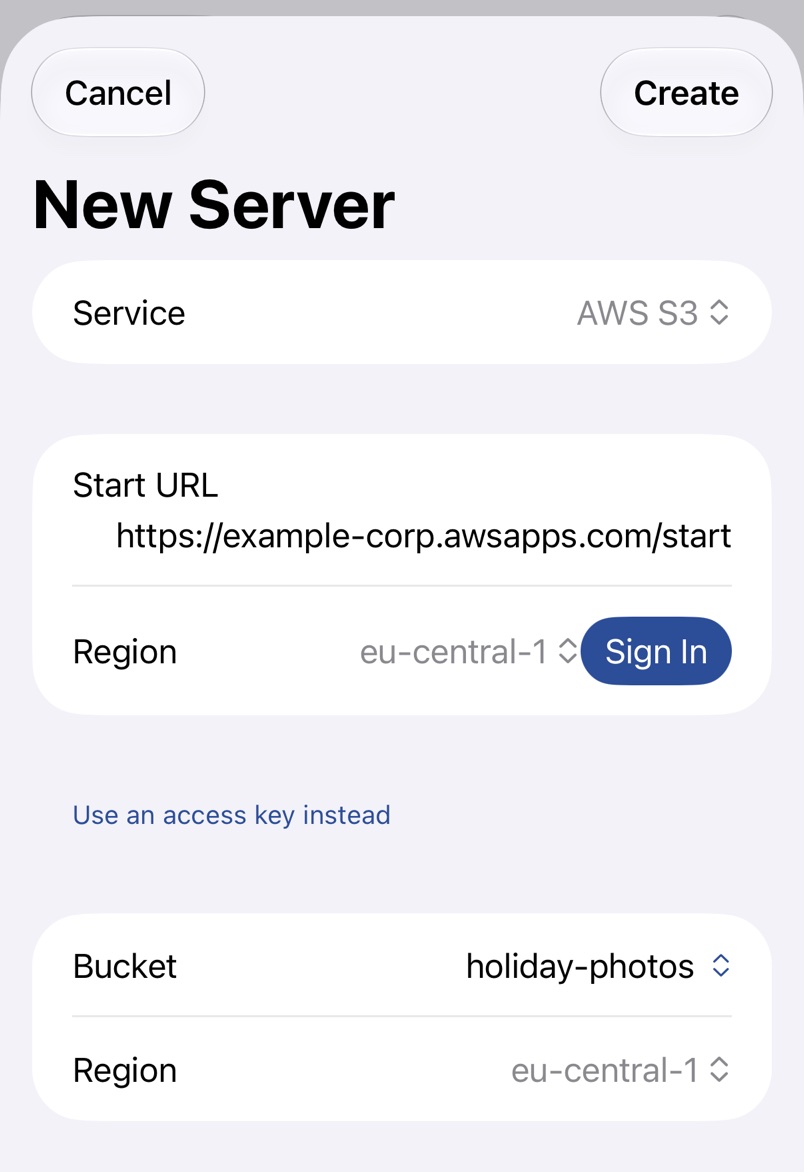
You need the portal address, such as https://my-org.awsapps.com/start, and your Identity Center region, both in the Settings summary on the IAM Identity Center dashboard.
- In New Server, pick AWS S3 and tap or sign in with IAM Identity Center.
- Enter the address in Start URL, choose the Region, tap Sign In and sign in on the page that opens.
- Choose the Account and Role, then the bucket, and tap Create.
S3 Files renews the credentials for as long as your organisation allows, and the SSO row in the server details shows when the session expires. The sign-in doesn't sync, so sign in once on each device.
Troubleshooting
- Invalid Access Key Id. Besides a mistyped or deactivated key, AWS gives this in a region that isn't enabled for your account.
- Signed in, but no roles are available. or Signed in, but your AWS administrator hasn't granted you access to any accounts. Ask your administrator to assign you a permission set, then sign in again.
- Your AWS SSO session has expired. Open the app to sign in again. The Files app and Finder can't show a sign-in page, so open S3 Files and sign in.
- Credentials not available. Sign in to refresh. Use Sign In in the SSO row.
Other errors, such as Access Denied, are explained in Connection Errors.