 S3 Files
Files App and Finder
S3 Files adds an S3 location to the Files app on iPhone and iPad and to Finder on a Mac, with a folder for each server. Files download when you open them and upload when you save, so any app that edits in place can work on your servers.
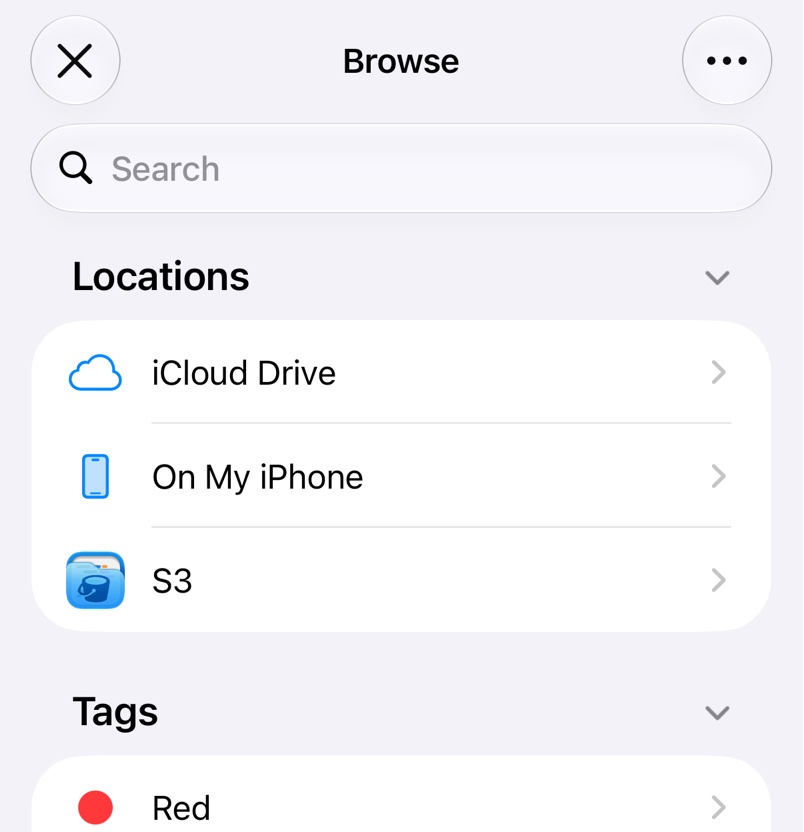
If the location doesn't show up, tap on the Files app's Browse screen, tap Edit and switch on S3. On a Mac it's under Locations in the Finder sidebar.
Actions in the context menu
Long-press an item in the Files app, or right-click it in Finder, for:
- Browse opens it in S3 Files.
- Manage shows permissions, storage class, versions and more; see Versions and Permissions.
- Share Link, or Copy Link in Finder, makes a link that expires after the duration set in Settings, or never for public-read files. Creating links is a Pro feature.
- Playback streams audio and video without downloading the file first.
- Request Upload and Share Edit Link make browser links for uploading and editing; see Request Upload and Edit Links.
- Restore from Glacier brings archived files back; see Storage Classes and Glacier.
Thumbnails
Read Exif Thumbnails in Settings, in the Finder tab on a Mac, shows thumbnails for photos that aren't downloaded yet.
On a Mac
Keep Downloaded in the Manage window keeps a file or folder downloaded when macOS frees up space, a Pro feature. Terminal and other tools reach the files in the folder for S3 Files inside ~/Library/CloudStorage.
Troubleshooting
- Files or folders stop updating. In Files app Diagnostics in Settings, or Diagnostics in the Finder tab on a Mac, Check Status tests the location and Reset rebuilds it, losing changes that haven't uploaded.
- There are no links in the menu. Servers with a client-side encryption key have no links.