 S3 Files
Connect to Google Cloud Storage with an HMAC Key
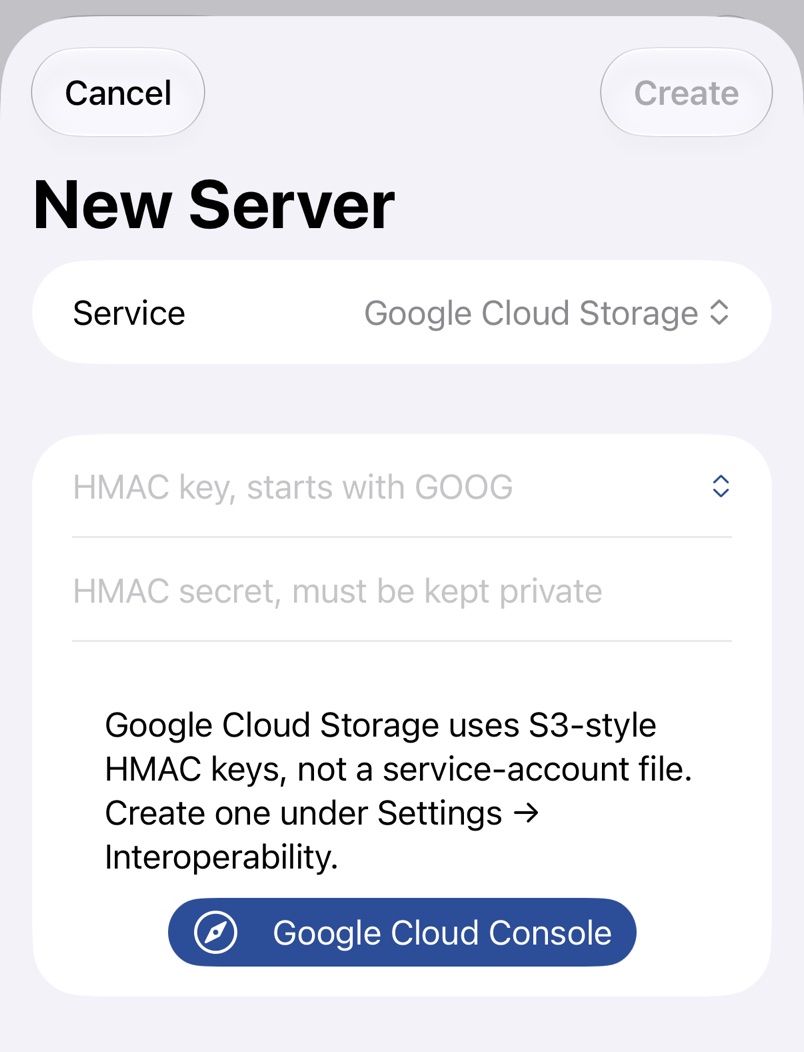
Google Cloud Storage answers S3 requests through its XML API with an HMAC key, an access key starting with GOOG and a secret, not the service account JSON files Google Cloud usually hands out.
A Google Cloud Storage server always names one bucket.
1. Make a service account
In the Google Cloud console, open IAM & Admin → Service Accounts and create one with no roles on the project. Then open the bucket under Cloud Storage → Buckets, choose Grant access on its Permissions tab, enter the service account's email address and give it Storage Object User, or Storage Object Viewer to only read.
2. Create the HMAC key
Open Cloud Storage → Settings → Interoperability, or tap Google Cloud Console below the key fields in S3 Files. Under Service account HMAC, choose Create a key for a service account, pick the account and choose Create key. Copy both values now, as Google shows the secret only once. More in Google's guide to managing HMAC keys.
3. Fill in the server
Pick Google Cloud Storage, paste the access key and the secret (HMAC Access Key and HMAC Secret on a Mac), and type the bucket name exactly as Google shows it.
Troubleshooting
- A JSON file, or a key that doesn't start with
GOOG, isn't an HMAC key; create one as in step 2. - Access Denied. The service account has no role on this bucket; check its Permissions tab.
- The test fails right after creating the key. Wait a minute and run Test Server again.
- There's no option to create the key. An organisation policy can forbid HMAC keys for service accounts; ask your administrator, or create one for your own user under User account HMAC.