 S3 Files
Browsing in the App
S3 Files has its own browser for things the Files app can't do. Choose Browse in S3 Files from a server's context menu, or Browse in New Window on a Mac.
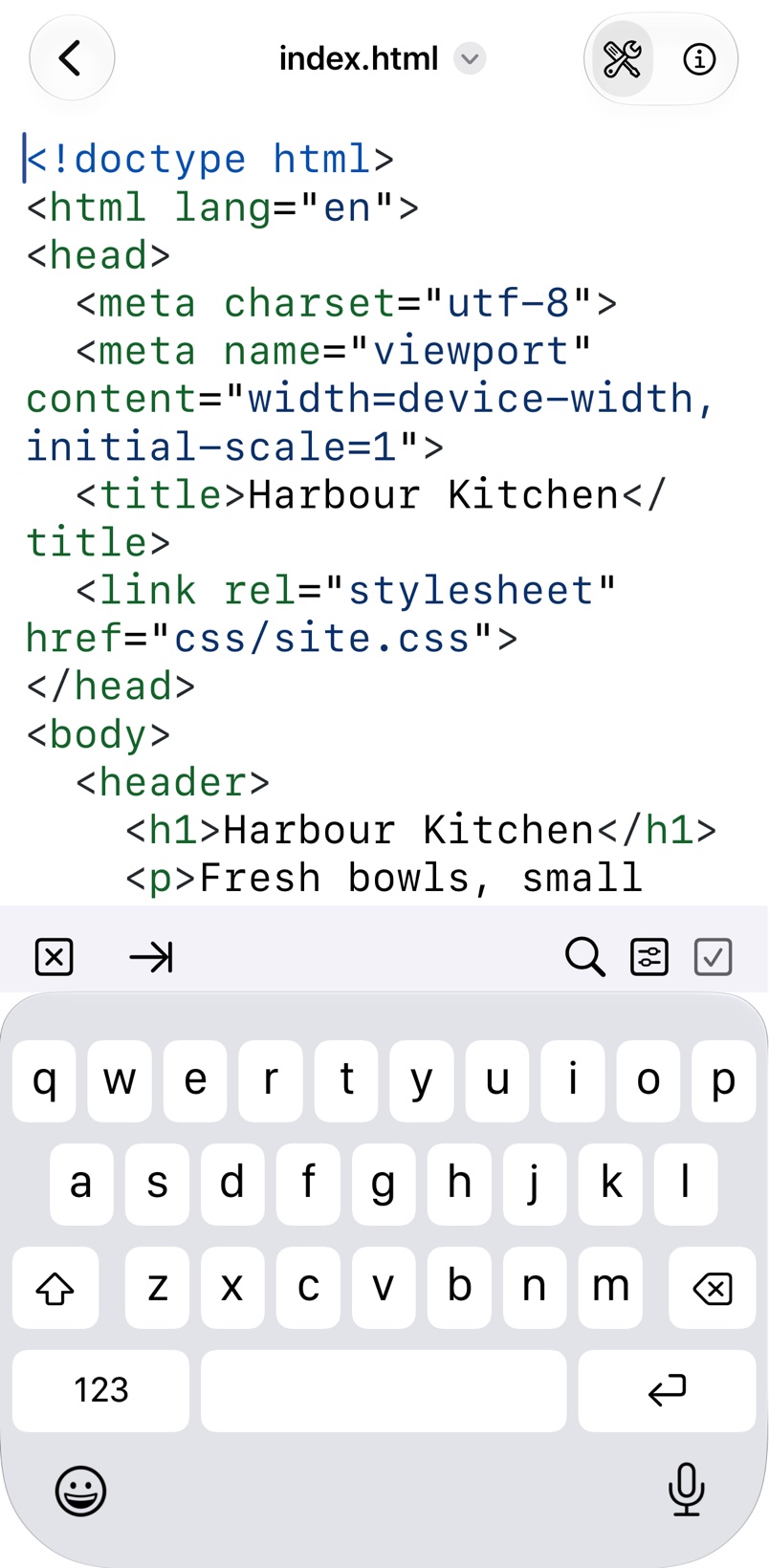
Its text editor with syntax highlighting lets you fix a web page, a JSON file or a script right in the bucket.
On a Mac the same commands are in the menu bar.
Finding files
The search field finds files by name in this folder and every folder below it, matching every word you type.
View Options sorts the list, keeps folders on top, shows hidden files or shows photos and videos as a grid, and lists deleted files in buckets with versioning.
Favourite folders
Add to Favourites, in the toolbar or a folder's context menu, saves a folder to jump back to from Favourite folders.
Creating and uploading
The Create & Upload menu makes folders and empty files, and uploads files, folders, images or the clipboard.
A Live Activity shows upload progress on the Lock Screen, and Retry tries a failed upload again.
Working with a file
Long-press a file, or right-click it on a Mac, to download, rename, duplicate, move, delete or share it, or copy a link to it with Copy Link.
Audio and video play with Playback, or straight from the server with Stream.
Editing text files
Tap a text file to view it, then tap Edit to change it. The editor highlights Swift, Python, JavaScript, TypeScript, HTML, CSS, JSON, YAML, Markdown, shell scripts, C, C++, Go, Rust, Ruby, Java, PHP, SQL, XML and TOML, and shows other text files plain.
The bar above the keyboard has Insert Tab and Find, and a menu with Line Numbers, Wrap Lines and the text size. Save writes the file back to the server. Files up to 1 MB can be edited, and the editor remembers where the cursor was in recent files.
Troubleshooting
- File is too large to edit (max 1 MB). Open it from the Files app or Finder in an editor app instead.