 S3 Files
Let Others Upload or Edit Through a Link
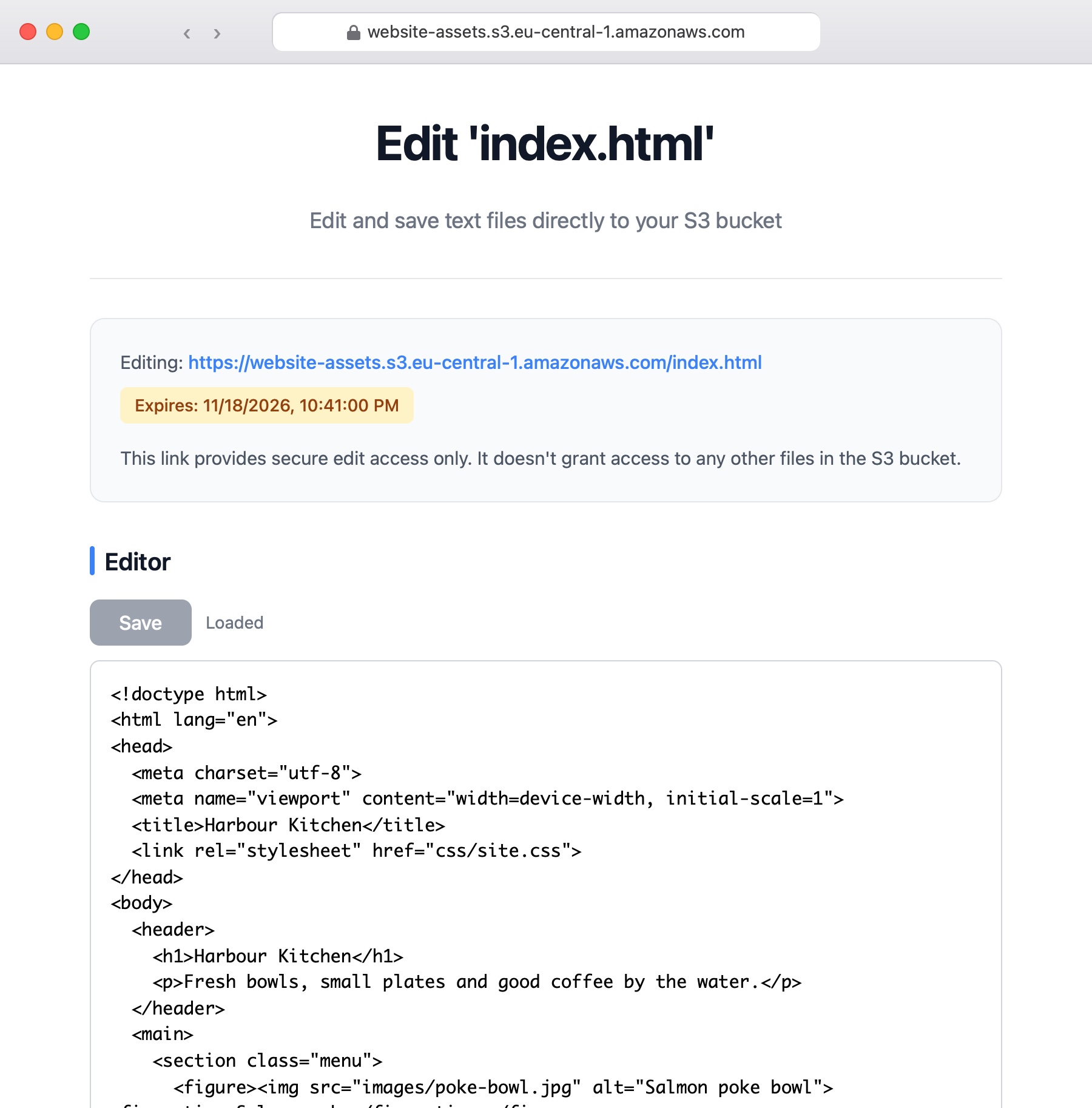
Request Upload makes a link that lets someone put one file into a folder of your bucket using nothing but a browser, without seeing or changing anything else there. An edit link does the same for an existing text file, opening it in a simple editor that saves straight back.
Both need Pro and a server without an encryption key, and both expire, as described in Share Links.
Request an upload
Long-press a folder in the Files app on iPhone and iPad, or right-click it in Finder on a Mac, and choose Request Upload. Type the name the uploaded file should get; the menu next to it changes the extension, which decides the page your visitor sees:
- an image name, such as
.jpg, takes a photo or picks one; - a sound or video name, such as
.m4aor.mp4, records with the camera or microphone; - a text name, such as
.txt, gives a text editor; - anything else gives a plain upload page.
Every page also takes a file from the visitor's own device and shows a curl command for uploading.
Choose how long the link works under Expiration, then send it on with Copy to clipboard, Open in browser or Share Link. Each upload replaces the one before, so for several files make a link per name, or ask for a .zip archive.
Edit links
For a text or source code file, choose Share Edit Link in the Files app or Open Edit Link in Finder. The editor opens in a browser, and the link lasts as long as the Share Link Duration setting.
Troubleshooting
- Request Upload is missing from the menu. The server is in Read-Only Mode or has an encryption key, or you picked a file instead of a folder.
- Share Edit Link is missing. It's only offered for text and source code files, on servers that aren't read-only.
- A file such as
s3-files-upload-request.htmlappeared at the top of the server. It's the page the links open; you can delete it when no link needs it, and a new link puts it back.